Activity List Report
An Activity List report can be printed directly from the Activities dashboard and filtered for specific Activity Types for easy reporting functionality. Before printing, the Activities dashboard needs to be filtered for the amount of days information (e.g., day, week or month) and the type of activity, if required.
To print the Activity List report:
-
From the Workbench, select the Activities dashboard.
-
To change the days amount of activities that is displays, select the calendar icon.
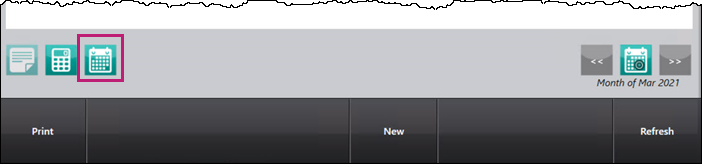
The Workbench Calendar window appears.
-
Select how you want the Activities dashboard information to display.
-
By Day - select the specific day you the Activities dashboard to display information for.
-
By Week - select a day within the specific week you want the Activities dashboard to display information for.
-
By Month - select a day within the specific month you want the Activities tab to display information for.

-
-
Select OK. The Workbench Calendar window closes to the Activities dashboard. The information that displays is updated.
-
From the Display dropdown, select the Status of activities you want to display.

The Activities dashboard is updated accordingly.
-
In the Filter textbox, enter what you want to filter the Activities dashboard by.
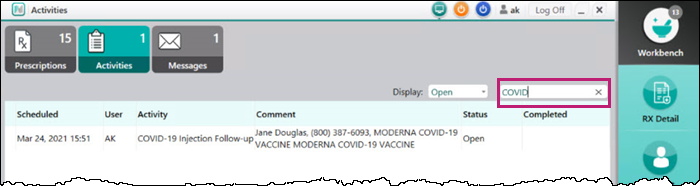
Note: Ensure you press the Enter key on the keyboard to apply the filter.
The Activities dashboard is updated accordingly.
-
Select Print.
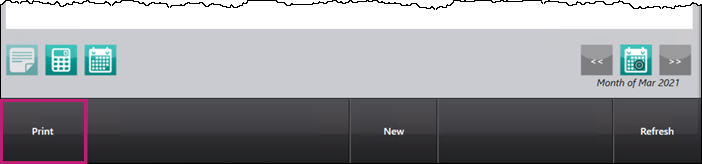
Note: Once done, remember to revert the filters you applied to view the Activities dashboard as usual.
Printer Location
You can indicate which printer you want the Activity List Report to print at in More > Pharmacy > System.
For Activities Report, select the printer from the Printer dropdown and select Save.

Sample Activity List Report
Click on the highlighted sections below to learn more about the information printed on the report.
